Use
Confirm processed alerts or create Service Desk messages for specified alerts.
Prerequisite
You have resolved the alert in your satellite system.
You are in the check of the alerts which you want to confirm, in the Business Process MONITORING session.
You have asigned the role SAP_SOL_SERVTRANS_CREATE to the user, to create Service Desk messages.
Procedure
Confirm Alerts
...
· Individual alert
a. Set the Alert Handled flag in the Select column.
b. Choose Confirm.
c. Save.
· Selected by alert rating
§ ...
¡ all yellow alerts
i. Choose Confirm All Yellow.
ii. Save.
¡ all red alerts
§ ...
iii. Choose Confirm All Red.
iv. Save.
Note
§ You can sort the alerts by decreasing rating, by double-clicking on a field in the Rating column.
§ ...
Create Service Desk Message
...
1. Set the Alert flag in the Select column.
2. Choose the Create Notification pushbutton.
A dialog box appears.
3. Enter the required data, and the text of your Service Desk message.
4. Choose the Create Message pushbutton.
The system writes the Service Desk message number in the Support Message column.
Note
§ If the message is relevant for more than one alert, copy the message number into the relevant row of the alert.
§ To edit the message:
i. Double-click on the message number.
You go to the Service Desk screen.
ii. Choose Display/Change Trans.
iii. Enter a text.
iv. Save your data.
v. Go Back.
§ To refresh the status of the Service Desk message, choose Refresh Message Status.
5. Save.
Showing posts with label SAP Documents. Show all posts
Showing posts with label SAP Documents. Show all posts
Wednesday, January 7, 2009

Configure ECM Planning Columns In MSS
I recently muck with a new piece of configuration involving MSS portal screen for ECM 5.0 which is pretty interesting. You could read more about it from SAP help document (HERE).
(Note: You need an OSS ID and LOGIN to access the document from SAP)
This walkthru is intended to show you at a high level what is involved. Let's start with the MSS portal screen of the ECM 5.0. As you can see (below) the MSS portal screen consist of several columns. These columns is a configuration item on the R/3 side.
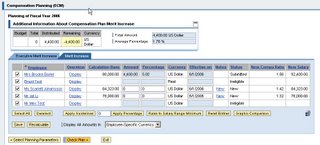
You could add columns, remove columns, and/or even define your own custom columns. The define custom column piece will be mentioned here, however will not go into detail.
In SAP R/3 system, we will look at the IMG node
SPRO -> Integration With Other SAP Components -> Business Packages / Functional Packages -> Manager Self Service (mySAP ERP) -> Object and Data Provider
We will focus our configuration in this particular IMG area. We will not use all of the pieces in here.
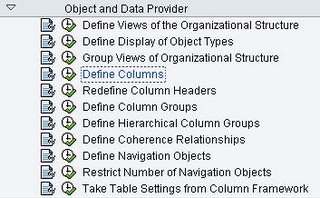
Let's start with "Define Columns". In the "Define Columns" (table: V_TWPC_COL_ERP), you will be listing all the possible columns to-be used by the MSS screen. It is in this particular area where you will define any custom columns you wish to define as well and link them to custom function module that will lookup the information needed to pass back to the column.
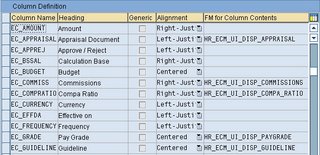 As you can see from the image above, you have Column Name, Heading, Alignment, and FM for Columns Contents. In the "FM for Column Contents" is where you specify the custom function module for the custom columns. SAP delivers a lot of standard column for ECM 5.0, you should look through them first to see if it exist prior to creating your own.
In the "Define Column Group", you have two pieces to configure. The first one is "Define Column Groups" (table: V_TWPC_ARRAYTP) and the second one is "Assign Columns To A Column Group" (table: V_TWPC_ACOL_C or V_TWPC_ACOL). In the "Define Column Groups" you will define the name where you will group all of these columns in earlier step together. In our example, we will call it as ECMDEM.
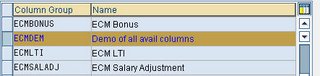
In the second section, "Assign Columns To A Column Group" is where you link all of the columns you've identify to the column group you gave the name to earlier (ECMDEM).
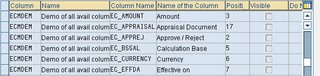
As you can see from the image above, ECMDEM column group has 6 columns (in actual table there are more, but screenshot has been cropped for blog). The position column shown above determine the position of the column from left to right. The "Visible" column forced the column to be visible and can not be hide from the USER profile in MSS. The next column you don't see is called "DO NOT DISPLAY", this will totally hide the column. The last column you need to know is "Invisible". Which allow the USER Profile in MSS to hide the column at the user level.
The last piece of config on the R/3 side is "View Definition" (table V_TWPC_V). I am not sure where this is located on the IMG step, I've always go to the table directly. This table specify what column group to use on the MSS portal side. The view name is what is used on the portal iview configuration.
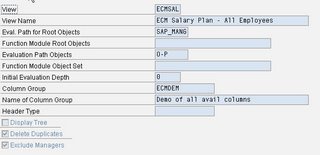
The "View" field will be used on the portal content adminstration side. This is what you tell your portal administrator to reference the iview from. See sample portal content administration screen below.
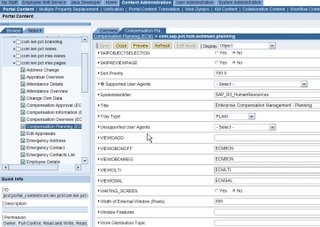
Now you've completed a simple walkthru on how to quickly modify columns for MSS ECM 5.0 screen. Chances are you might have access to do the R/3 configuration, however you would need to work with the portal team on modifying the portal iview to specify the proper view name.
A couple of things you need to know and remember. First is some of these fields are considered as dynamic driven fields. Such as Compa Ratio, New Base Salary, etc. In order for these fields to properly work, a setting need to occur. Second is there are limitation to how many columns you could display. While you have more shown on the R/3 table configuration, there is a max of how many could be show on the portal screen. The MSS User would need to de-select which of those they don't care to show and select those they care to show. Please refer to main SAP HELP document (link provided top of blog) for further information. Otherwise, you will be scratching your head for days trying to figure out why there are no data showing in these fields.
Lastly, from what I've gathered, ECM in later version after 5.0 have slight changes to how the portal screen look like. As the result, this method might not be correct for later version. Please refer to their documents for further details.
(Note: You need an OSS ID and LOGIN to access the document from SAP)
This walkthru is intended to show you at a high level what is involved. Let's start with the MSS portal screen of the ECM 5.0. As you can see (below) the MSS portal screen consist of several columns. These columns is a configuration item on the R/3 side.
You could add columns, remove columns, and/or even define your own custom columns. The define custom column piece will be mentioned here, however will not go into detail.
In SAP R/3 system, we will look at the IMG node
SPRO -> Integration With Other SAP Components -> Business Packages / Functional Packages -> Manager Self Service (mySAP ERP) -> Object and Data Provider
We will focus our configuration in this particular IMG area. We will not use all of the pieces in here.
Let's start with "Define Columns". In the "Define Columns" (table: V_TWPC_COL_ERP), you will be listing all the possible columns to-be used by the MSS screen. It is in this particular area where you will define any custom columns you wish to define as well and link them to custom function module that will lookup the information needed to pass back to the column.
 As you can see from the image above, you have Column Name, Heading, Alignment, and FM for Columns Contents. In the "FM for Column Contents" is where you specify the custom function module for the custom columns. SAP delivers a lot of standard column for ECM 5.0, you should look through them first to see if it exist prior to creating your own.
In the "Define Column Group", you have two pieces to configure. The first one is "Define Column Groups" (table: V_TWPC_ARRAYTP) and the second one is "Assign Columns To A Column Group" (table: V_TWPC_ACOL_C or V_TWPC_ACOL). In the "Define Column Groups" you will define the name where you will group all of these columns in earlier step together. In our example, we will call it as ECMDEM.
In the second section, "Assign Columns To A Column Group" is where you link all of the columns you've identify to the column group you gave the name to earlier (ECMDEM).
As you can see from the image above, ECMDEM column group has 6 columns (in actual table there are more, but screenshot has been cropped for blog). The position column shown above determine the position of the column from left to right. The "Visible" column forced the column to be visible and can not be hide from the USER profile in MSS. The next column you don't see is called "DO NOT DISPLAY", this will totally hide the column. The last column you need to know is "Invisible". Which allow the USER Profile in MSS to hide the column at the user level.
The last piece of config on the R/3 side is "View Definition" (table V_TWPC_V). I am not sure where this is located on the IMG step, I've always go to the table directly. This table specify what column group to use on the MSS portal side. The view name is what is used on the portal iview configuration.
The "View" field will be used on the portal content adminstration side. This is what you tell your portal administrator to reference the iview from. See sample portal content administration screen below.
Now you've completed a simple walkthru on how to quickly modify columns for MSS ECM 5.0 screen. Chances are you might have access to do the R/3 configuration, however you would need to work with the portal team on modifying the portal iview to specify the proper view name.
A couple of things you need to know and remember. First is some of these fields are considered as dynamic driven fields. Such as Compa Ratio, New Base Salary, etc. In order for these fields to properly work, a setting need to occur. Second is there are limitation to how many columns you could display. While you have more shown on the R/3 table configuration, there is a max of how many could be show on the portal screen. The MSS User would need to de-select which of those they don't care to show and select those they care to show. Please refer to main SAP HELP document (link provided top of blog) for further information. Otherwise, you will be scratching your head for days trying to figure out why there are no data showing in these fields.
Lastly, from what I've gathered, ECM in later version after 5.0 have slight changes to how the portal screen look like. As the result, this method might not be correct for later version. Please refer to their documents for further details.
Enterprise Services Documentation Download
On this page, you can find every document related to enterprise services. The documentation provided here explains everything from the transactions required to maintain enterprise services to the required information to consume enterprise services. In addition, the comprehensive documentation for each application type ranges from the business content and usage of enterprise services to detailed technical information.
The documents are grouped by the process components they belong to. That way, you should be able to find all semantically related documents in one place. All documents are in PDF format, so that you can save them and refer to them offline as often as you need.
Document Downloads
You can download the documentation packages from the links below:ERP 2004 documentation (ZIP 4.6 MB)
ERP 2005 documentation (ZIP 10.6 MB)
SCM documentation (ZIP 4.4 MB)
SRM documentation (ZIP 2.4 MB)
CRM documentation (ZIP 2.2 MB)
Subscribe to:
Posts (Atom)

 |
 |
 |
 |
 |
 |
 |
 |
 |
 |
 |
 |
 |
 |
 |
 |
 |
 |


